

Your flipbook looks great on Fflipp. Now it can look just as good on your own website. With our new Embed the full flipbook feature, you copy one code from the editor, paste it into your site or blog, and your readers get the complete interactive flipbook right there on the page, with page-flipping, zoom, links and all.
Readers don't need to download a PDF or click away to another site. They can read your flipbook right where they already are.
Why embed your flipbook?
For businesses and marketers
- Keep visitors on your website while they browse your catalogue, brochure or report.
- Product links and hotspots keep working, and they open in a new tab, so readers never lose your page.
- See how many people read the flipbook on your site in the same Fflipp analytics you already use.
For creators and authors
- Show off a portfolio, zine or sample chapter on your own blog, with the page-turning feel of a real book.
- Update the flipbook once, and every page that embeds it shows the new version.
For educators
- Put workbooks, newsletters and class publications directly on a school website or class blog.
- Students can read comfortably on a laptop, tablet or phone.
What your readers get
- The real flipbook experience: realistic page-flipping, zoom and full-screen mode.
- Working links and hotspots: clickable areas keep working, and links open in a new tab.
- Easy sharing: the Share button lets readers copy the flipbook link or share it on Facebook, X, LinkedIn or by email. Shares always use the normal Fflipp link.
- A clean frame: your flipbook's title sits in a slim bar at the top, and a small, semi-transparent Fflipp logo sits in the corner.
It adapts to the reader's screen
- Desktop, and tablets held sideways: a two-page spread.
- Phones and tablets held upright: one large page, in a taller box shaped like your flipbook's own pages.
- Phones held sideways: a two-page spread. The smallest phones may stay on one page.
- Wide formats, such as 16:9 slides: always one page.
What you get as the creator
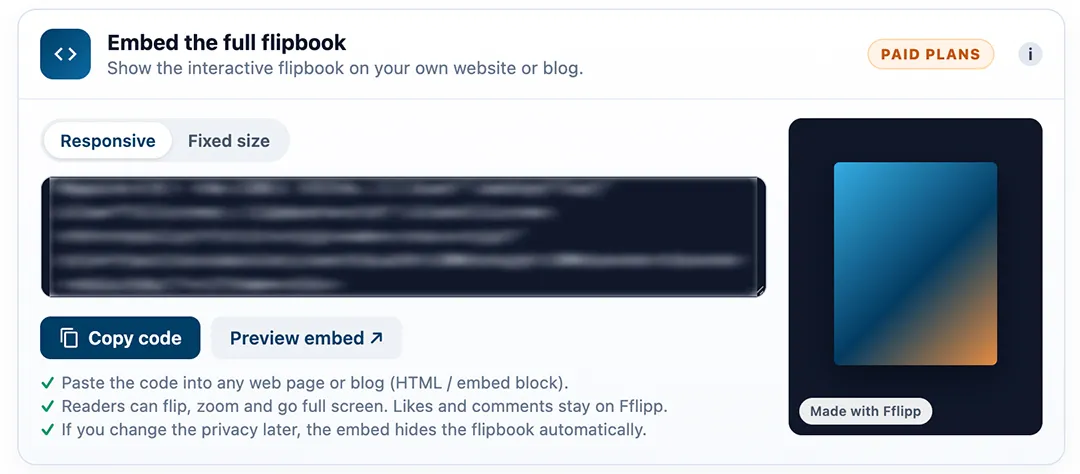
- One-click "Copy code" in the editor, plus a "Preview embed" button so you can see the result first.
- Two size options: Responsive (recommended) fits any page width and adjusts to phones and tablets automatically. Fixed size lets you set the width and height in pixels.
- Always up to date: edit your flipbook and the embed shows the latest version. You don't need to paste the code again.
- Embedded views count: views inside embeds appear in your normal Fflipp analytics, including the reader's country.
- Privacy-friendly: the embedded viewer sets no advertising or analytics cookies (see section 5 of our Cookie Policy), and no cookie banner appears inside the embed. Likes and comments are hidden in the embed and stay on the Fflipp page.
- Safe by design: if you later make the flipbook password-protected or private, or your account is no longer on a paid plan, the embed automatically stops showing the content and displays a neutral "View on Fflipp" card instead.
Prefer something lighter? The Embed Flipbook Card, a small cover card that links to your flipbook, is still available on paid plans.
Which flipbooks can be embedded?
Embedding the full flipbook is included in Fflipp's paid plans, and you can try it during the 14-day free trial. See the comparison table on our Pricing page for what each plan includes. You can embed any flipbook whose privacy is set to Public or Listed (link-only).
Password-protected, private and lead-capture flipbooks stay on Fflipp. Their access gate is there to protect your content, and it can't work safely inside another website, so we keep those flipbooks where that protection works properly.
How to embed your flipbook in 7 steps
- Log in to Fflipp and open your flipbook in the editor.
- Make sure its privacy is set to Public or Listed, and save.
- Find the "Embed the full flipbook" box under the share link.
- Choose Responsive (recommended) or Fixed size.
- Click Copy code. Use Preview embed if you want to see it first.
- In your website or blog editor, add an HTML / Custom HTML / Embed block and paste the code. For example: the WordPress "Custom HTML" block, Wix "Embed HTML", the Squarespace "Code" block, or a Shopify "Custom Liquid/HTML" section.
- Publish the page. Done!
The embed works on most websites that allow HTML or embed blocks. Some site builders don't allow embed codes, so check your builder's help pages if you can't find an HTML block.
Quick troubleshooting
- The box looks too small, or shows two pages on an upright phone: the page is missing the standard mobile setting. Almost all modern website themes already include it. A web developer can add <meta name="viewport" content="width=device-width, initial-scale=1"> to the page's <head>.
- The embed shows "View on Fflipp" instead of the flipbook: check that the flipbook is set to Public or Listed, and that your account is on a paid plan.
Frequently asked questions
Does it slow down my site?
The embed is set to load lazily. That means it loads when the reader scrolls to it.
Do embedded views count in my analytics?
Yes. Views inside embeds are counted in your normal Fflipp analytics, including the reader's country.
Is it free?
Embedding is part of Fflipp's paid plans, and you can try it free during the 14-day trial. If you don't continue after the trial, your embeds switch to a neutral "View on Fflipp" card, and you can still create and share flipbooks with a link on the free plan. See the Pricing page for what each plan includes.
Can I embed a password-protected flipbook?
No. Password-protected, private and lead-capture flipbooks can't be embedded, because their protection can't work safely inside another website. If you change an embedded flipbook to one of these settings, the embed switches to a neutral "View on Fflipp" card, so your private content stays private.
If I edit my flipbook, do I need to paste the code again?
No. The embed always shows the latest version of your flipbook.
Ready to put your flipbook on your website?
Turn your PDF into an interactive flipbook, then copy one code and paste it on your page. Try it free for 14 days.


Comments & Questions
Log in to join the conversation.